

When speaking to friends about the many paid AI tools available to users, I’ve consistently quoted veteran tech journalist, and Microsoft expert, Paul Thurrott. He argues that AI is not a product, but should be a feature that augments other services. I think augmentation is the right way to think about it. Generative AI does a lot of things. It’s a big, messy, Swiss Army knife of a tool, and if you want the best version of one of these tools you have to cough up roughly $20 a month whether you use ChatGPT or one of its rivals.
But, when you add AI to an existing tool you leverage that technology in a specific context. You go from a Swiss Army knife to a finely crafted Buck Knife. Maybe knives are not the best analogy. You get a more limited product, but theoretically, one that functions more reliably in that specific context. AI is coming, or has come, to many of our favourite web services and productivity apps. Grammarly has a premium version that includes generative AI. Microsoft Office gets Copilot Pro inside each application if you pay for that service.
Last year it became clear that I needed more fully-featured cross-platform tools for project management and notes. (Apple Notes continues to be a mainstay, but using the web version on a Windows machine is less than ideal). After testing several options, I’m now using (to great success) Todoist for project management and Notion (again) for notes. Both are great examples of tools that thoughtfully incorporate AI, but today I want to focus on Notion since I’ve explored its offering more thoroughly.
Accessing Notion AI
When you create a new note in Notion, you can use the AI assistant to help you start the document and brainstorm ideas.
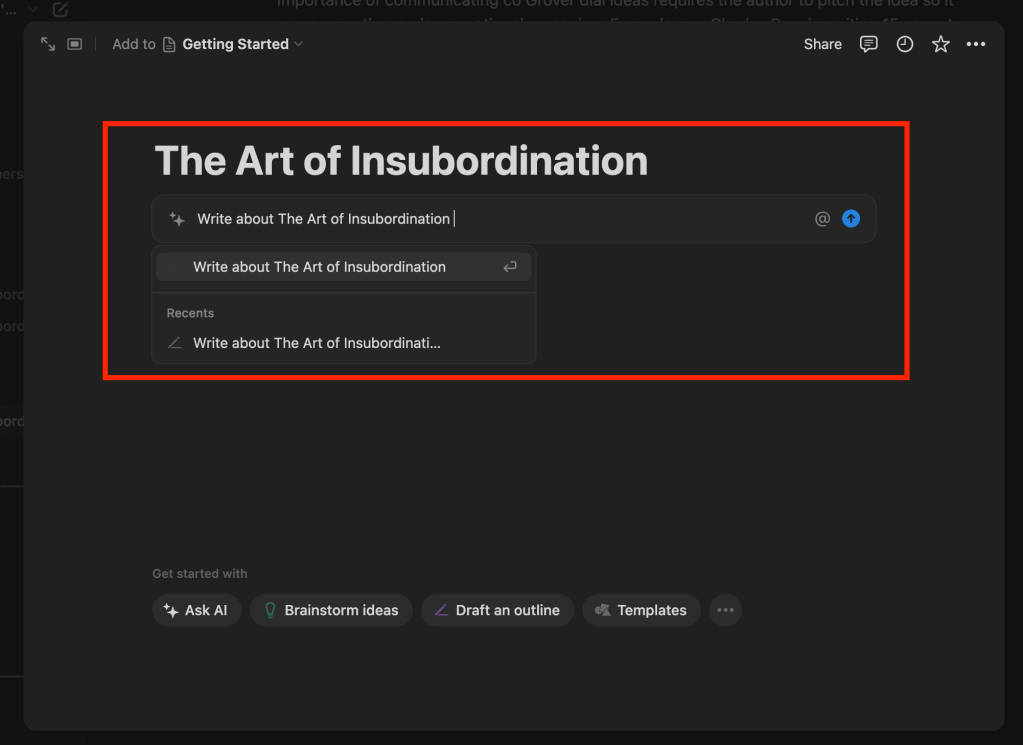
I rarely use AI to get me started, simply because it’s my opinion that forcing myself to begin the writing process without assistance (regardless of how badly my first drafts might be) exercises my ability to overcome resistance.
Instead, I prefer to get all my ideas down and then use the AI assistant to help me after the fact. You can access the AI via the chat menu.
Contextually aware AI chat
Notion AI realizes that I’m working on a note, so the context is clear. In this example, I’m editing some notes I took on Todd Kashdan’s book The Art of Insubordination. I’ve closed this example specifically because it’s not a particularly long note, so you can get a fuller picture of the AI capability.
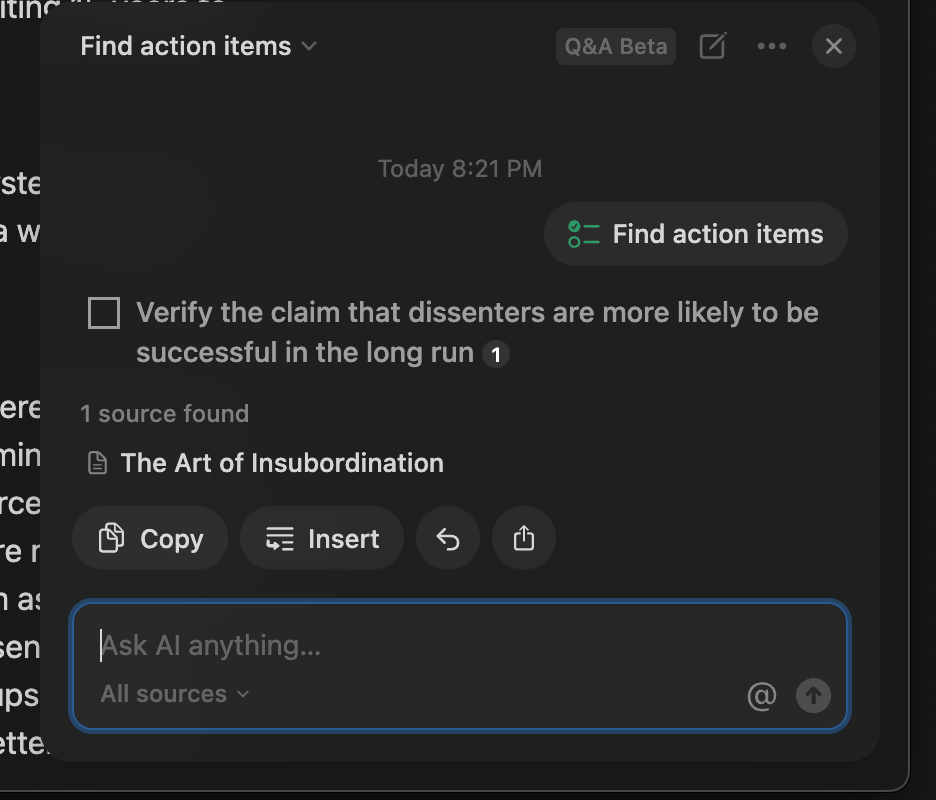
From the chat menu I can ask questions about the note, create action items, or get feedback on my writing.
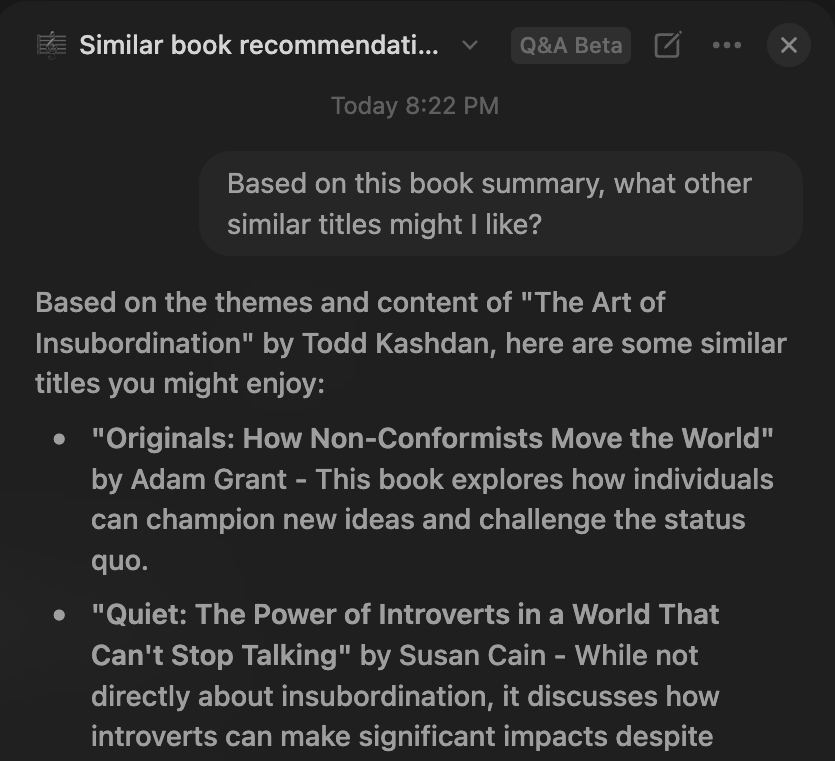
For instance, I could ask the AI something like “Rewrite the second to last paragraph so it sounds less repetitive.” I will get a rewritten paragraph (in the chat box) that I can insert into the page.
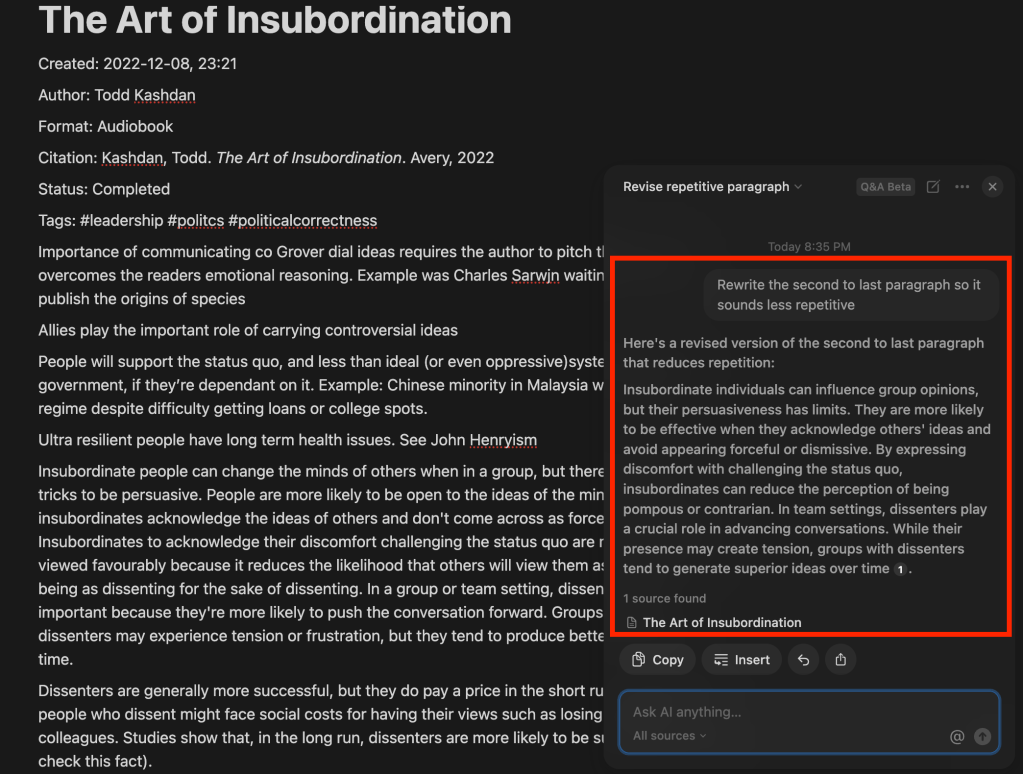
On a side note, I do find the insert option to be a little quirky. As a user, I was under the assumption that anywhere I clicked on the note, my new AI-generated text would be inserted. Generally, the AI just put it at the bottom of the page and I have to move it later. No big deal, but something I wanted to note.
In-text suggestions
Another way to access the AI is by directly selecting text in the note. When you highlight text, the format bar pops up. When you subscribe to Notion AI, there are two new buttons. “Improve writing” automatically tries to improve the writing of the selected text without any additional prompts. Selecting the AI icon allows you to ask specific questions or create specific instructions just for the selected text.
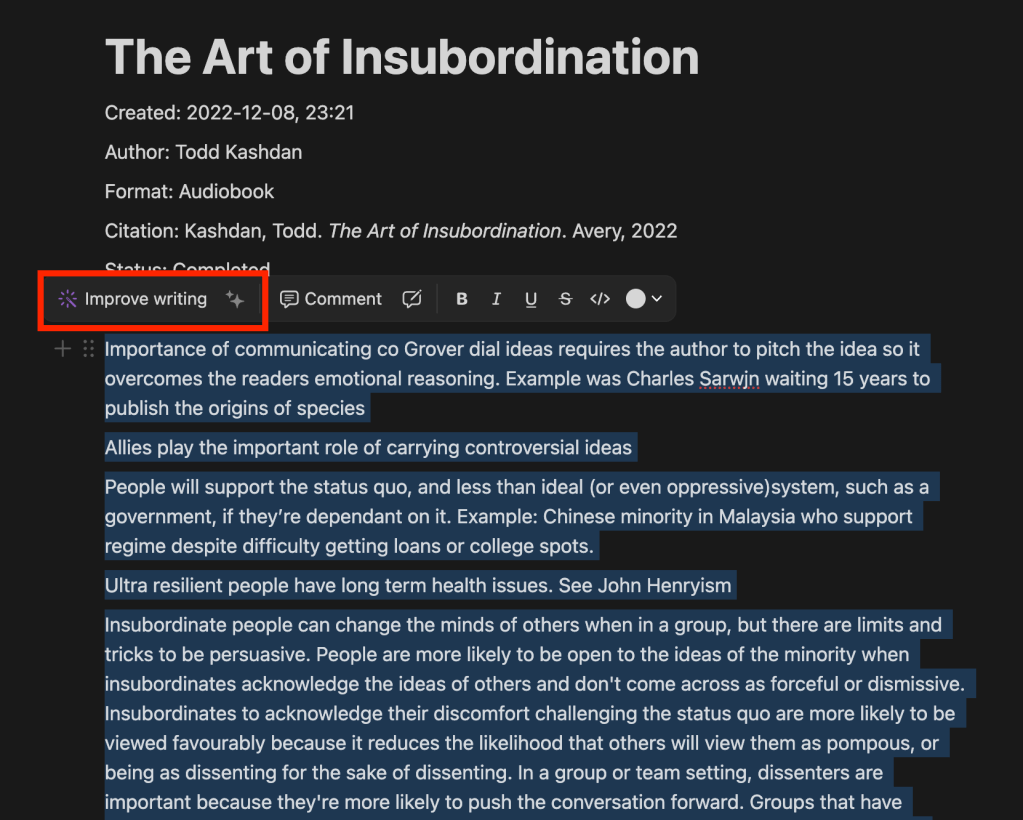
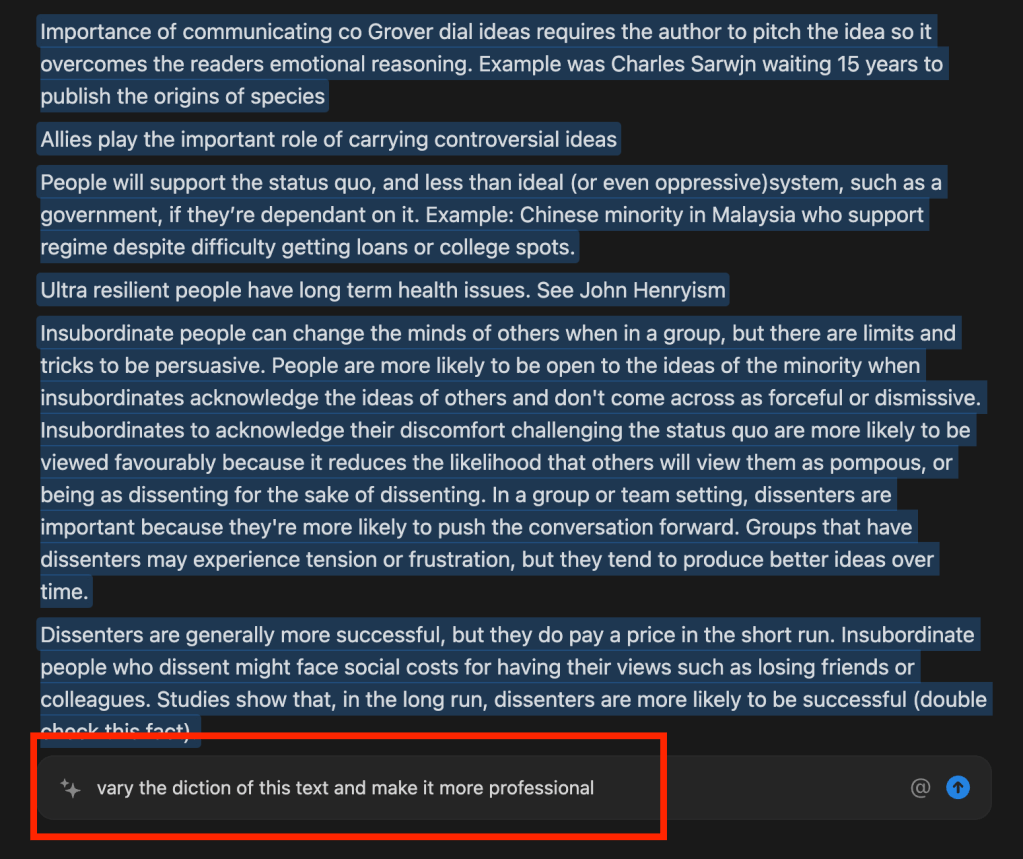
For example, if I select the note’s text I could write the prompt “vary the diction of this text and make it more professional.” Instead of suggesting new text that I can insert into the page, Notion will make suggested edits to the note text. Then, I can select one of the following options: accept, reject, insert below, or “try again.” The markup you get is much like suggested edits others make in shared Google Docs.
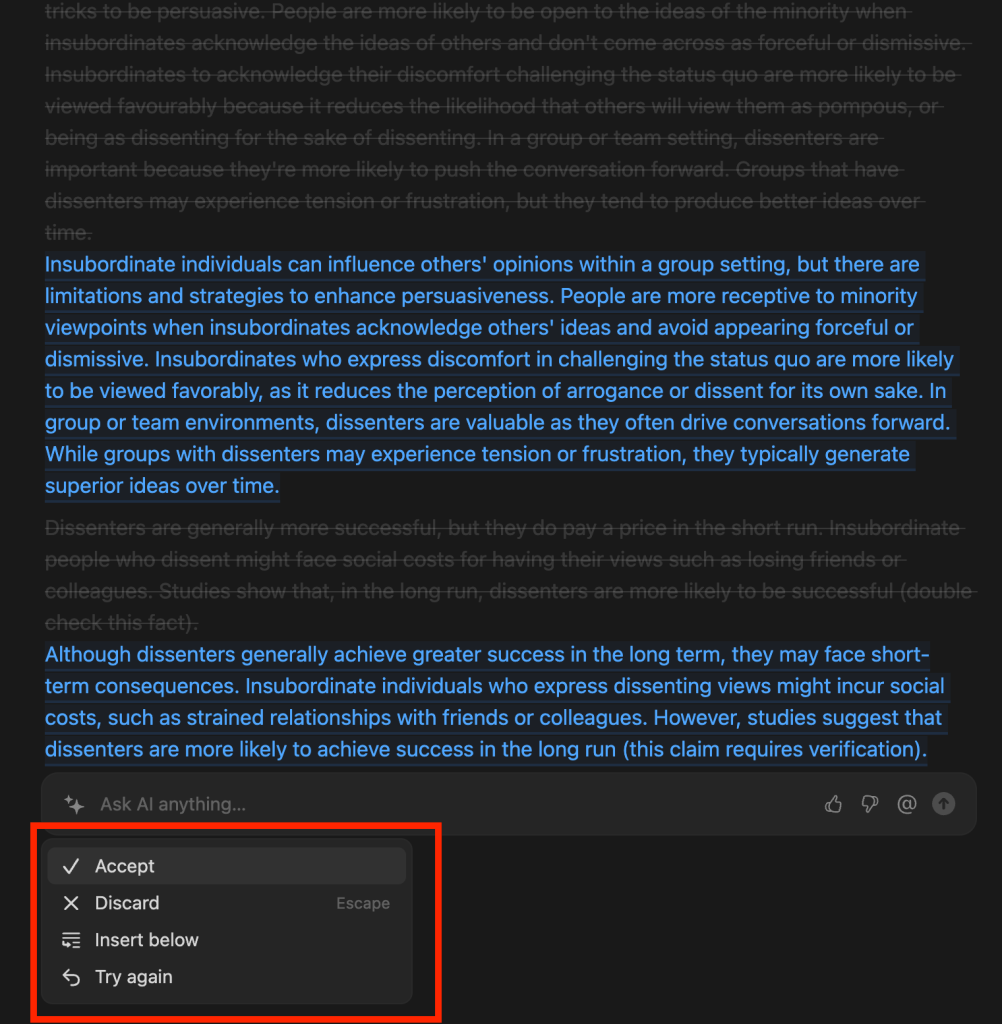
Why “this is the way” when integrating AI
I’m sure other tools integrate AI this way, and there will be more to come. But, using Notion AI was a lightbulb moment for me. Let me explain.
When thinking about user experience, I prefer to take the Macintosh approach instead of the Windows approach. No, this isn’t a comment on one platform being better (I use both). I could just have easily said the Android approach vs the iOS approach. These contrasting operating systems are examples of different design philosophies. Windows and Android allow for more affordances – ways to do something. They are highly flexible and customizable, probably because businesses make up a large portion of their user bases and the ability to customize those platforms for business needs is paramount. Mac and iOS are somewhat customizable, but they tend to have more constraints. They show the user how to do things their way. “Customization to a point” is their approach.
My personal preference is to have reasonable amounts of customization, but reduce the number of affordances so the user can more easily learn the interface. Therefore, you would think having multiple locations to access the AI would be confusing. But, after using all the major AI tools I can get my hands on, I think the approach of embedding AI throughout the user interface is the correct one.
The chat function is like ChatGPT. It’s open-ended. I can ask general questions about a given note, or prompt the AI to create a new note or checklist. The responses are contained in this chat and are saved until I start a new session. But, the ability to also highlight specific sections of text and work in an even more granular context makes the whole experience more efficient. I like it when the AI meets me where I am, rather than going to the AI. Reference my earlier example, it’s easier to highlight specific sections of text and prompt the AI to work only in that section. This is much faster than using the chat interface and prompting the AI to edit a specific section by explaining the particular paragraph or section I want to edit.
Takeaways
I’m not taking sponsorships from Notion. I just really like their approach to AI integration, and so far I think their user experience is superior. Here are my takeaways.
- The AI is fast. No hangups in my ample testing.
- You have two places to access the AI – traditional chat and a contextual formatting bar. This allows for better efficiency.
- The AI tool understands the context you’re working in.
- Notion is cross-platform (Windows and Mac) and has seamless web access.
To be fair, Notion AI works similarly to Microsoft’s Copilot Pro integration into Word, and I have to think the Notion team took notice. However, while I have not used that tool for several months when I tested Copilot in Word, I found it to be slow and it often misunderstood my queries. Another big difference is the price. Copilot Pro (at the time of writing) is USD 20 per person per month. Notion AI has a free tier (with limitations), while the paid tier is USD 8 a month billed annually. That’s $240 vs $96 annually.
A pro tip for educators. Currently, Notion Plus is free for education users. This also includes a discount for the AI add-on.
Notion’s integration of AI is my new high bar. It’s a relatively friction-free experience that strikes the balance between flexibility and simplicity. My hope is that more services integrate AI thoughtfully (and reliably) as the Notion team.

 Erik Christiansen
Leave a comment